Active Directory DNS: Forwarders, Reverse Zones, Split-Brain
Configure Active Directory DNS on Windows Server: forwarders, reverse lookup zones, conditional forwarders, and the split-brain setup that broke our own site.

- The Two Faces of Active Directory DNS
- The Internal Zone: AD’s Own Records Office
- The Outside World: A Dead End Without a Forwarder
- Configuring a DNS Forwarder
- Opening DNS Manager
- Adding Forwarders: 8.8.8.8 and Beyond
- Verifying the Forwarder with PowerShell
- Reverse Lookup Zones and PTR Records
- Why Reverse Lookup Matters
- Creating a Reverse Lookup Zone
- Conditional Forwarders
- Adding a Conditional Forwarder
- Split-Brain DNS
- Configuring Split-Brain DNS
- Lab: The Example Zone That Broke Our Own Website
- Common Active Directory DNS Mistakes
- Next Steps
At a multi-site organization I worked for, a complaint came in: the purchasing portal wasn’t loading. I was working from home that day and checked from my own connection. The site loaded fine. They insisted, so I connected to the corporate network over VPN, and sure enough, it didn’t load. I switched to a neighboring organization’s wireless network on the same campus: it loaded. Back on our own network: nothing. The problem was clearly inside.
After a long search I found it. Years earlier, before the web servers were moved out, a former sysadmin had added an A record for that subdomain to the internal DNS. The software vendor later changed the IP address, but the record stayed. Queries from inside went to the domain controller, which found the old, dead IP in its own zone and sent people there. Anyone outside used public DNS and reached the current address. The senior sysadmins blamed the vendor and said “it’s not us.” I knew it was the internal DNS.
A good system administrator doesn’t have to be an expert in everything, but they do have to understand their own system’s basic behavior well enough to tell where a problem comes from. This article covers the Active Directory DNS configuration steps that matter most, the reasoning behind them, and what works in the field, and it ends with the same mistake happening in my own lab, caused by an example from the Turkish original of this very article.
The first and most important step after installing Active Directory is the DNS forwarder. Skip it and the result is certain: nobody gets to the internet. dcdiag is clean, domain logons work, a second DC is in place, and users still can’t reach google.com, because their queries go to the DC, which resolves internal zones perfectly and has no answer for anything outside. Finding that can take hours; fixing it takes five minutes.
Active Directory depends on its own DNS. Windows, Linux, or macOS, every domain-joined device uses a DC as its primary DNS server, and that’s the right design: the _msdcs zone, SRV records, and Kerberos don’t work without AD DNS. The cost is that a DC which knows the inside perfectly knows nothing about the outside. The forwarder bridges the two. This article is part of the Active Directory guide and assumes Windows Server is installed and the domain already exists. Screenshots and outputs come from the author’s lab domain (ad.sercebilisim.com); names and addresses are left exactly as they were captured.
The Two Faces of Active Directory DNS
When Active Directory is installed, the DNS Server role comes with it and two critical zones are created: a forward lookup zone for the domain (in the lab, ad.sercebilisim.com) and _msdcs.ad.sercebilisim.com, which holds the SRV records. These zones are AD’s backbone; the domain doesn’t work without them. The bridge between that inner world and the internet is yours to build. Active Directory doesn’t add a forwarder for you.
The Internal Zone: AD’s Own Records Office
Think of a city’s records office. It knows every property in its own city perfectly and answers at once. Ask about a property in another city, and the answer is “we don’t hold that; ask them.” The internal zone of AD DNS works exactly like that: every record under the domain, for DCs, workstations, printers, and servers, is answered with authority. Step outside the zone and the DC’s knowledge ends.
Technically, the DC is authoritative for the domain. All the A, SRV, CNAME, and PTR records under it live on the DC, and every internal query is answered there. SRV records such as _ldap._tcp.ad.sercebilisim.com and _kerberos._tcp.ad.sercebilisim.com, created during installation, are how clients find a DC. If they’re deleted or damaged, logons start to fail.
A field reality: automatic cleanup of stale records in this zone (scavenging) is off by default. Records for retired machines pile up, and after a few years DNS Manager shows hundreds of old A records. Scavenging is outside this article’s scope, but put it in your build notes; ignoring it is what starts hours-long troubleshooting sessions later.
The Outside World: A Dead End Without a Forwarder
When the DC receives a query for google.com, it looks in its own zones first and finds nothing. With a forwarder configured, it passes the query to, say, 8.8.8.8 and returns the answer to the client. Without one, it has two choices: recurse through the internet’s root servers via root hints (slow, and it spends bandwidth), or fail. In many small offices the second is what users experience: “DNS server not responding,” and the internet looks down.
A missing forwarder is the most common post-install mistake in production, and it’s slow to diagnose. The DC answers pings; domain logons work; the internet doesn’t, so someone calls the ISP. The fix is five minutes of work, once you know where to look.
Configuring a DNS Forwarder
Opening DNS Manager
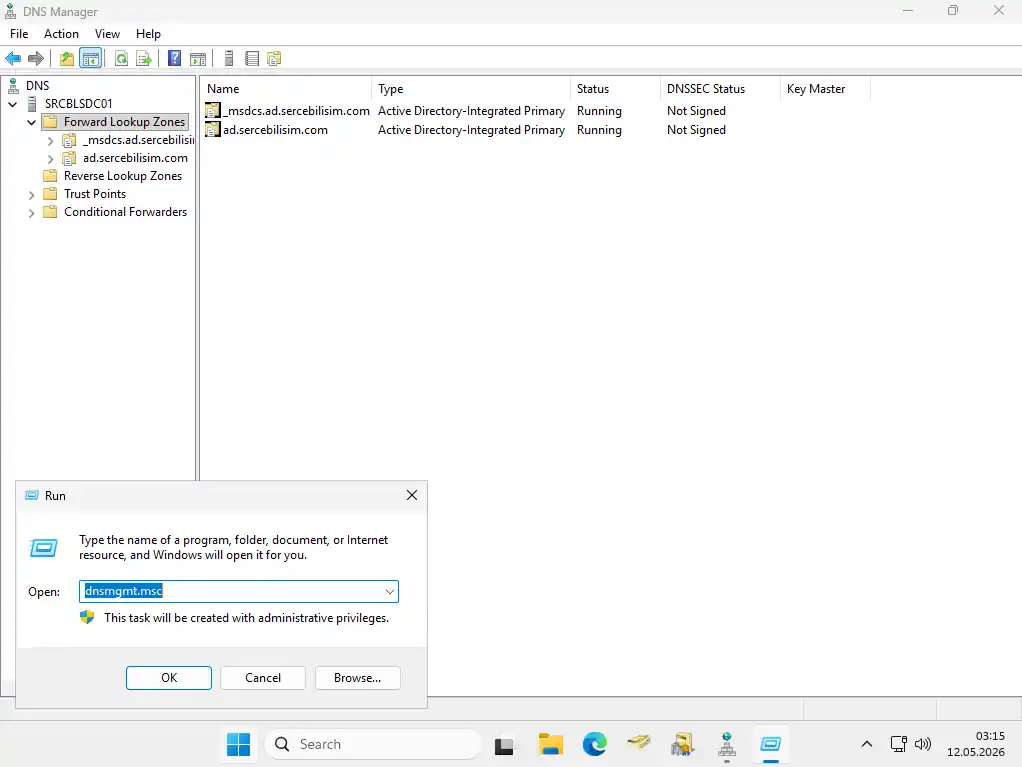
DNS Manager is the console where zones and records are managed on Windows Server. Press Win + R and type dnsmgmt.msc, or use Server Manager → Tools → DNS. The left pane shows the server name with Forward Lookup Zones and Reverse Lookup Zones beneath it.
Adding Forwarders: 8.8.8.8 and Beyond
In DNS Manager, right-click the server name and choose Properties, then open the Forwarders tab. This tab holds the outside DNS servers the DC asks about names it doesn’t know.
A side benefit is easy to miss here: because the DC forwards every outside query itself, it’s the one place that can keep a record of which outside services your organization reaches. DNS server logging is worth planning for that reason alone.
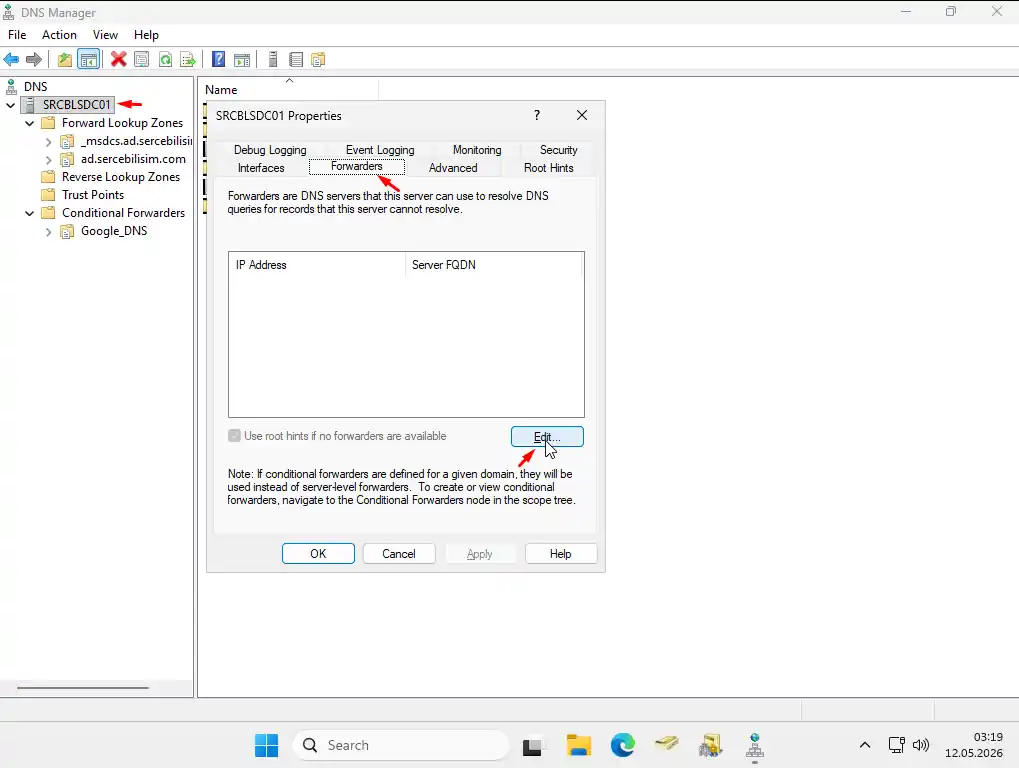
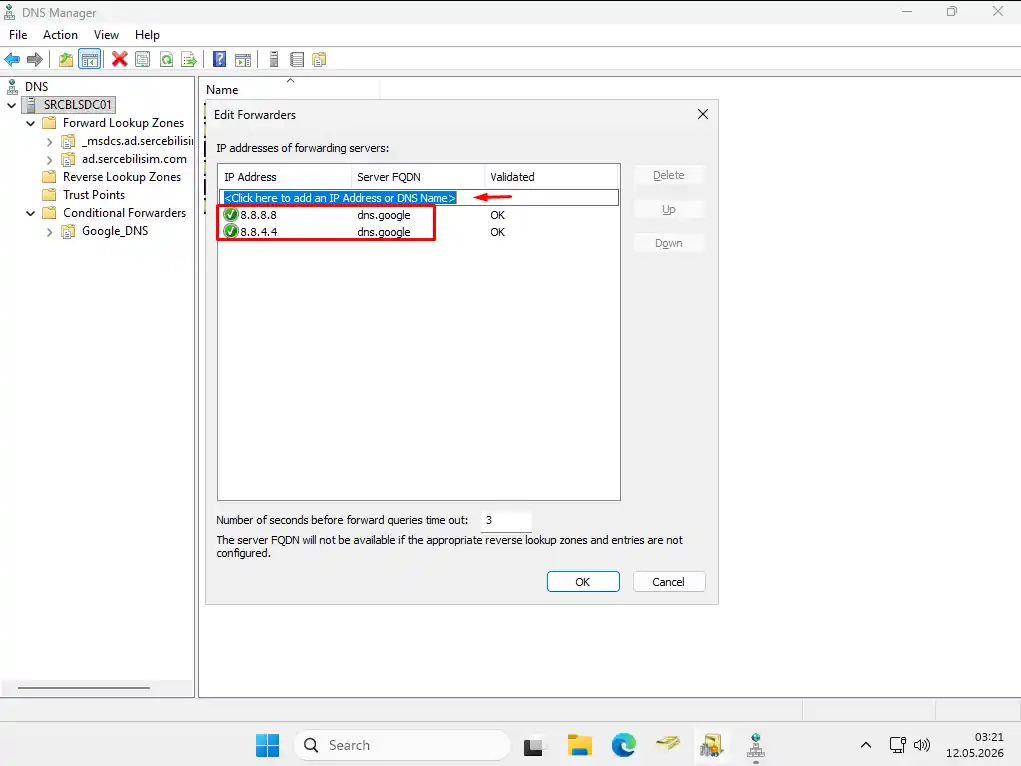
Click Edit and enter the IP addresses of the DNS servers you want to forward to, pressing Enter after each. Google DNS (8.8.8.8 / 8.8.4.4) and Cloudflare DNS (1.1.1.1 / 1.0.0.1) are the most common choices; your ISP’s resolvers or an internal filtering resolver are equally valid if your policy calls for them. Confirm with OK.
Verifying the Forwarder with PowerShell
After adding forwarders, open PowerShell on the DC and run:
Resolve-DnsName google.com -Server 192.168.1.10 -Type A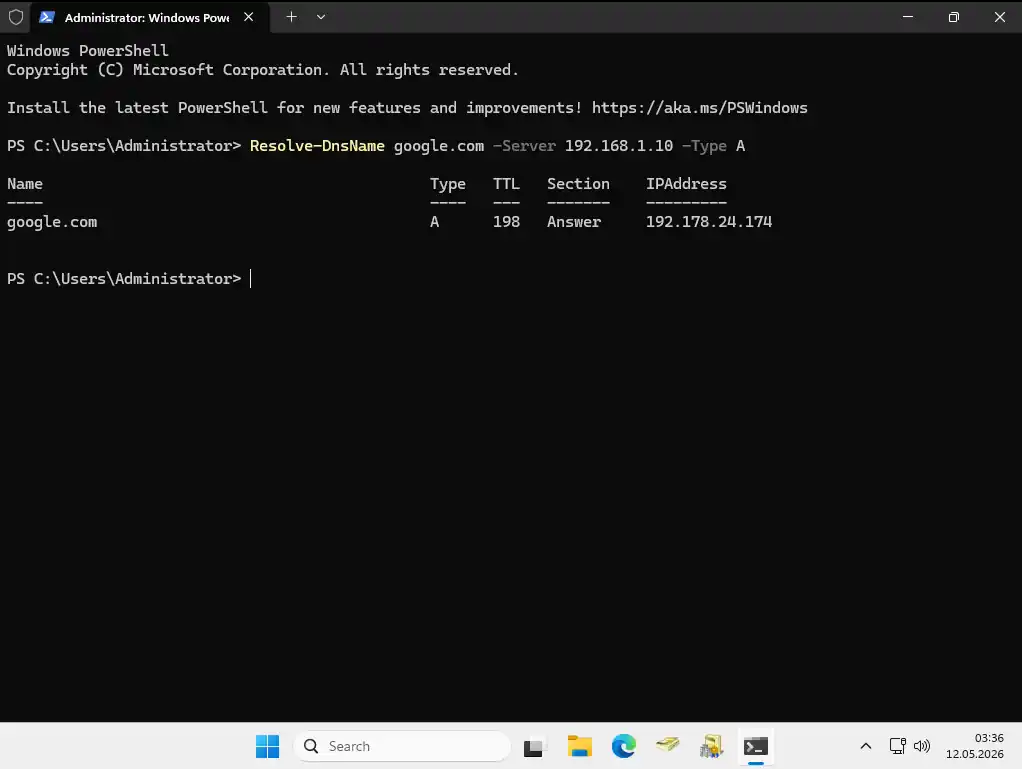
If client machines still hold old answers, clear them with ipconfig /flushdns.
Reverse Lookup Zones and PTR Records
Why Reverse Lookup Matters
A phone book lets you go from a name to a number. Now imagine the opposite: you have a number from a call log and need to know who it belongs to. That’s reverse lookup. DNS’s forward lookup goes from name to IP; reverse lookup goes from IP back to name.
A reverse lookup zone holds PTR (pointer) records: an application asking about 192.168.1.10 gets back SRCBLSDC01.ad.sercebilisim.com. In practice that buys you:
- Mail infrastructure: mail servers verify senders with PTR records; missing ones cause errors in some mail flows and push outside servers toward marking mail as spam.
- Security and logging: SIEM tools, firewall logs, and audits translate IPs into hostnames. Without PTR records, logs hold only IPs, and “which machine had this IP?” has no instant answer during an incident.
- Network security devices: some firewalls and IDS systems check PTR before allowing a connection, and reject or flag it when there’s no answer.
It isn’t strictly required; a simple AD deployment runs day to day without it. But as the organization grows and mail or SIEM arrives, the gap shows. Adding it at build time takes three minutes; adding it later means creating PTR records for existing A records by hand.
Creating a Reverse Lookup Zone
In DNS Manager, right-click Reverse Lookup Zones and choose New Zone. In the wizard:
- Zone Type: Primary zone, with Store the zone in Active Directory checked.
- Active Directory Zone Replication Scope: To all DNS servers running on domain controllers in this domain, so it replicates to every DC.
- Reverse Lookup Zone Name: choose IPv4 and enter the network ID. For
192.168.1.0/24,192.168.1is enough; the wizard builds the zone name1.168.192.in-addr.arpaitself.
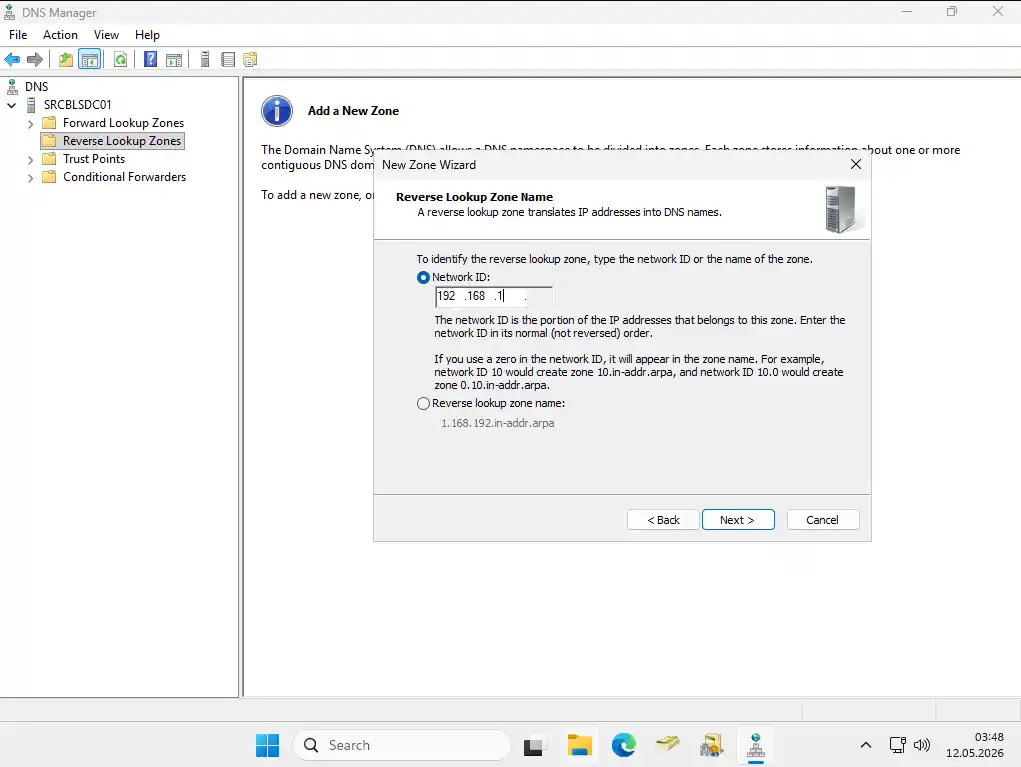
Next comes the Dynamic Update page, with three options:
- Allow only secure dynamic updates: domain-joined computers register their own PTR records; devices outside the domain can’t. The standard choice for Active Directory.
- Allow both nonsecure and secure dynamic updates: devices outside the domain (printers, Linux servers, NAS) can register too. Risky: an unauthorized device can write a fake record.
- Do not allow dynamic updates: nothing is registered automatically; every PTR record is added by hand.
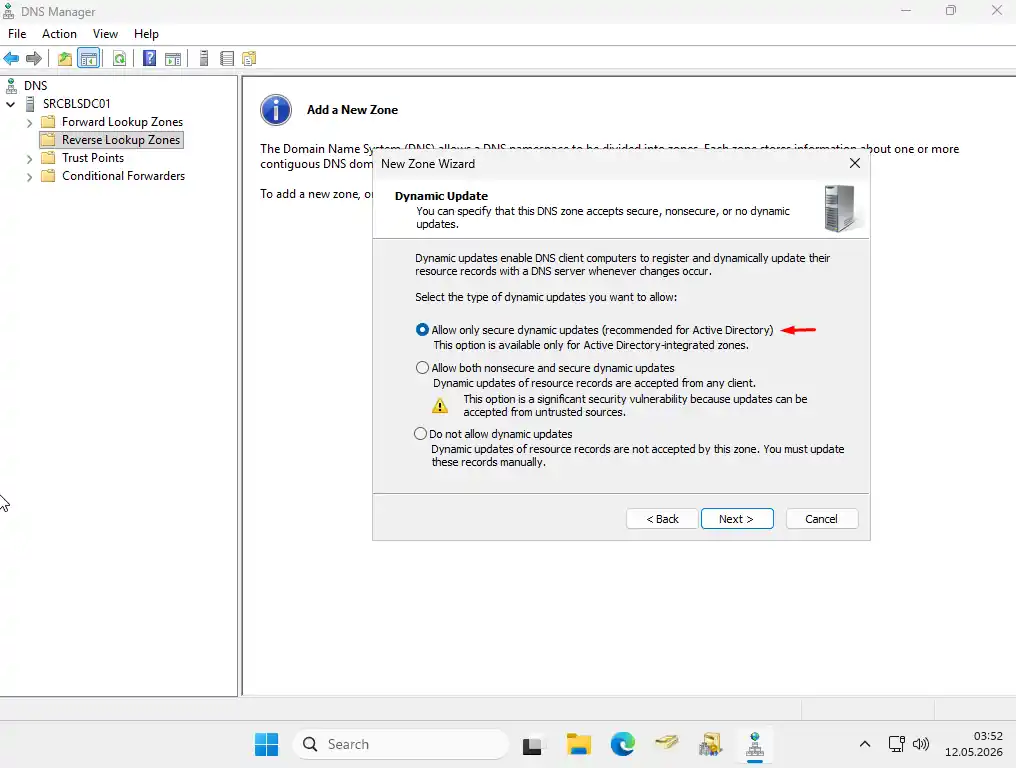
After the zone exists, PTR records arrive two ways: automatically, by checking Create associated pointer (PTR) record when adding an A record, or manually, by right-clicking the reverse zone and choosing New Pointer (PTR). The checkbox only works for new A records; existing ones need their PTR records added by hand.
Conditional Forwarders
If you run a single site with a single domain, you can skip this section for now. Conditional forwarders become necessary when:
- Sites run separate domains: a head office DC doesn’t know how to resolve a branch domain such as
branch.sercebilisim.com. A conditional forwarder sends those queries straight to the branch DC. - Two forests must see each other: after a merger or with a partner integration.
- Hybrid Microsoft 365 setups need records such as
autodiscoverhandled internally while other queries follow the normal path.
Think of a company mail room. Most outgoing mail goes into the ordinary postal system, but the mail room keeps a short list: anything addressed to one particular partner goes by that partner’s own courier. Same exit door, different route for a few named destinations. A conditional forwarder is that list: queries for one named domain go to a specific DNS server, and everything else goes to the normal forwarders.
Adding a Conditional Forwarder
In DNS Manager, right-click Conditional Forwarders and choose New Conditional Forwarder:
- DNS Domain: the domain to redirect, for example
branch.sercebilisim.com. - IP addresses of the master servers: the DNS server that resolves it, for example the branch DC at
10.0.1.10. - Check Store this conditional forwarder in Active Directory, and replicate it as follows so every DC gets it. Always check it.
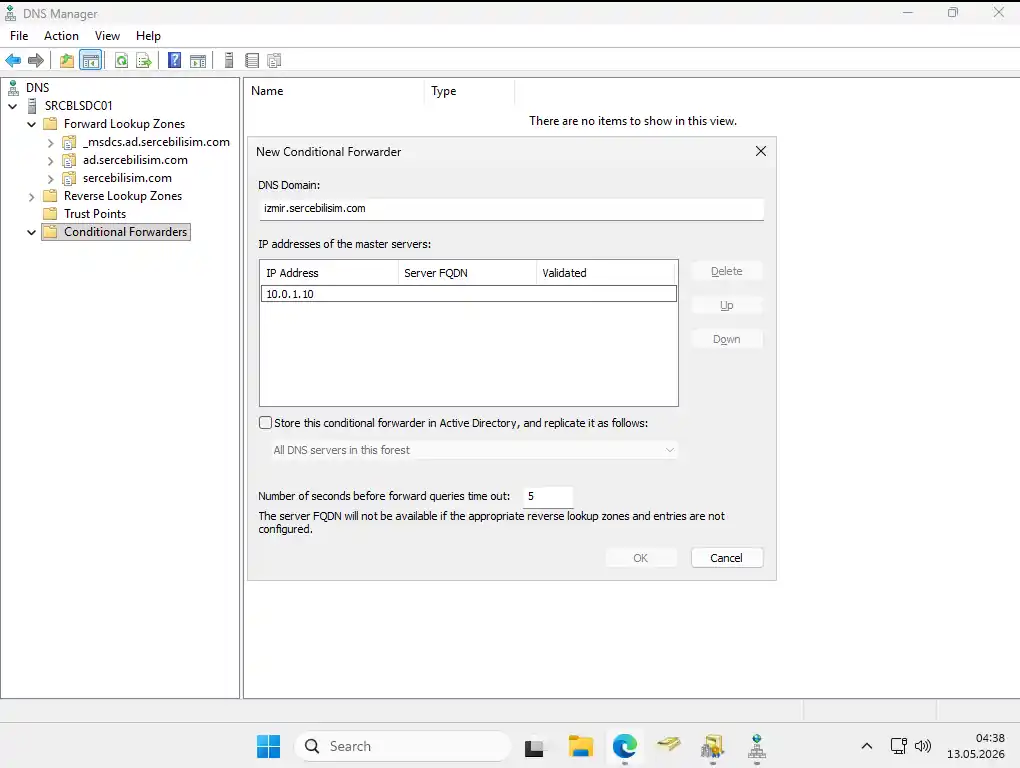
Split-Brain DNS
Split-brain DNS means the same name resolves to one address inside the network and another outside. Say your public website runs on a server in your own building, so www.sercebilisim.com is the same machine from the internet and from the office. From inside, there’s no reason for packets to go out to the internet and back; the server is right there. With split-brain DNS, an internal query returns the server’s internal address (for example 192.168.1.100) and traffic stays local. From the internet, public DNS returns the public address, and outside users see no change.
Without it, an office user reaching your site goes out to the internet, through the firewall, and back in. That’s hairpin NAT; some routers don’t support it at all and the connection fails, while those that do carry pointless load. Split-brain DNS removes the detour.
Configuring Split-Brain DNS
Create a new primary zone for the public domain on the DC. The DC becomes authoritative for it, so those queries stop going to public DNS.
In DNS Manager, right-click Forward Lookup Zones and choose New Zone:
- Zone Type: Primary zone, with Store the zone in Active Directory checked.
- Active Directory Zone Replication Scope: To all DNS servers running on domain controllers in this domain. Every DC answers consistently; no need to go forest-wide.
- Zone Name:
sercebilisim.com, the public domain, not the internal AD domain.
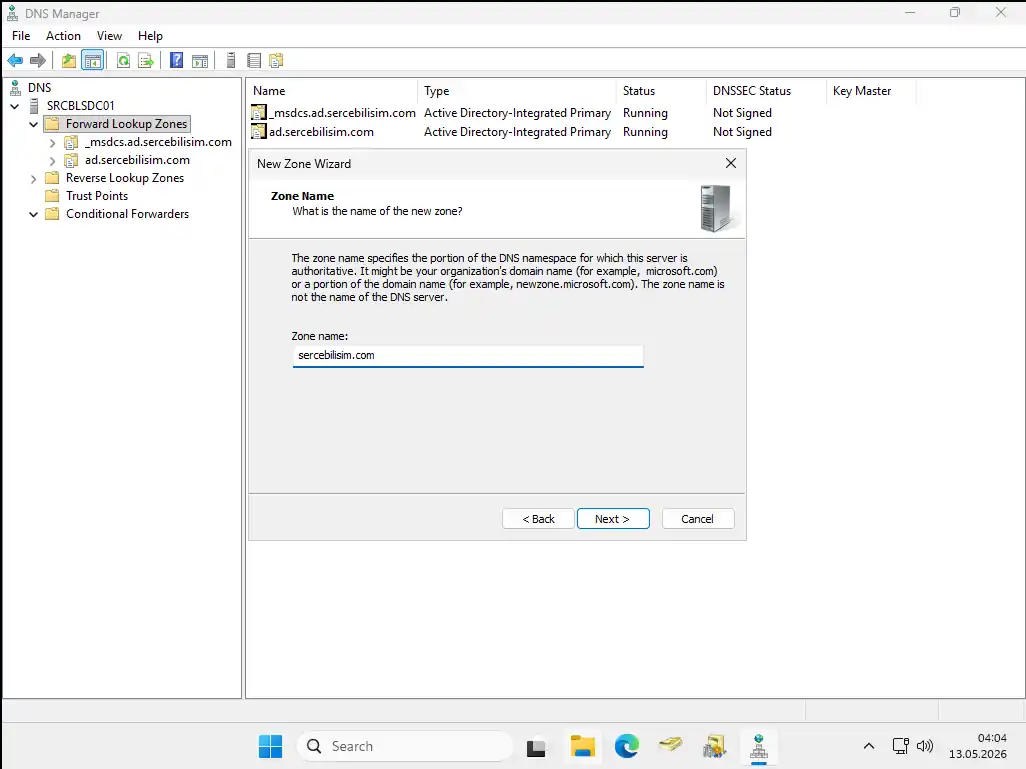
- Dynamic Update: Do not allow dynamic updates.
That choice is critical. This is your public domain; internal computers must not register themselves in it. With “secure only,” domain-joined machines would add their own A records, so the accounting PC could appear as accounting.sercebilisim.com. “Do not allow” keeps the zone entirely manual: only records you add on purpose live here.
Then right-click the new zone and choose New Host (A or AAAA):
- Name:
www(left blank, it applies to the zone apex,sercebilisim.comitself). - IP address: the web server’s internal address, for example
192.168.1.100. - Create associated pointer (PTR) record can be checked if a reverse zone exists.
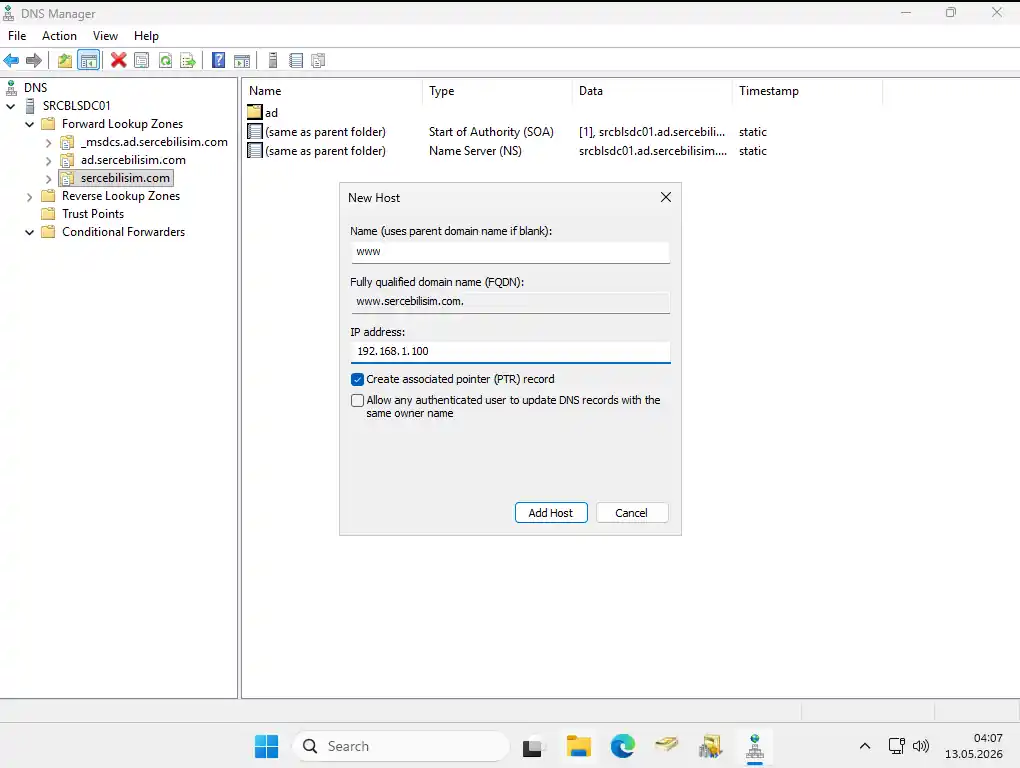
Click Add Host. Now an internal query for www.sercebilisim.com returns 192.168.1.100, and traffic never leaves the building. Verify from any internal machine:
ping www.sercebilisim.com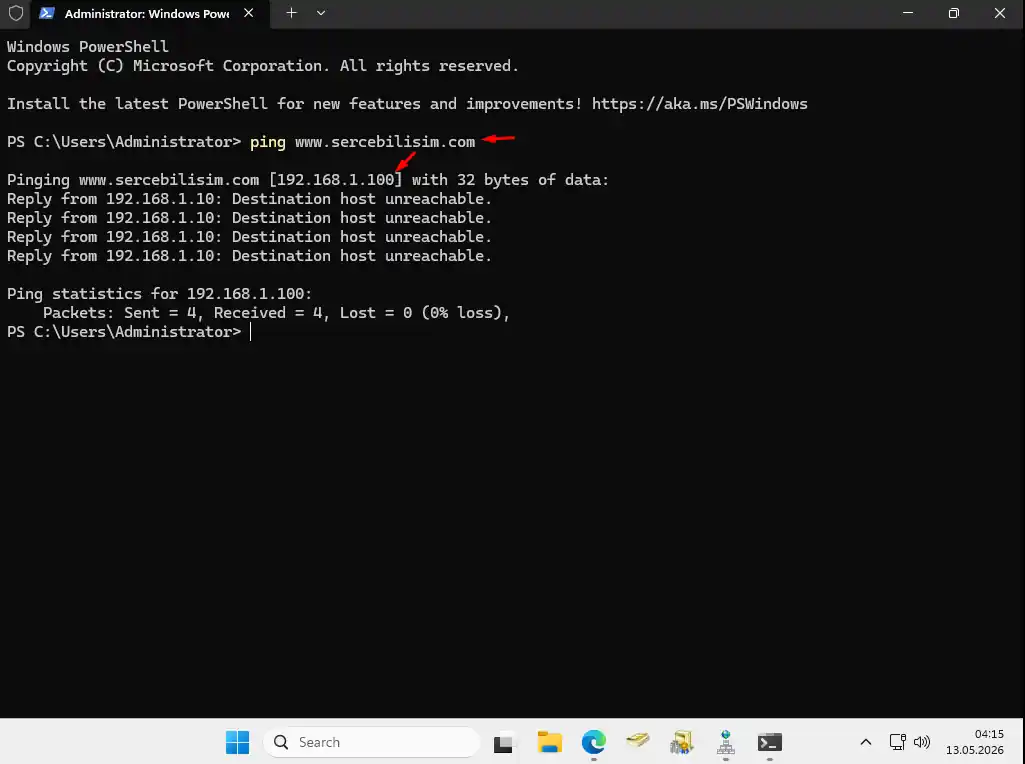
Records in public DNS that have no counterpart in this zone can’t be resolved from inside. Every new public record has to be added here too, or you get “it opens from outside but not from inside,” which is exactly the story this article opened with.
Lab: The Example Zone That Broke Our Own Website
That warning is abstract until it happens to you. It happened to me, with the zone in the screenshots above, and the Turkish original of this article never mentions it.
The sercebilisim.com zone was created on the lab DC on 13 May 2026 to take those screenshots. It held exactly one record, www → 192.168.1.100, pointing at an address where nothing lived (the ping above already said so: no replies, and ARP never completed). There was no record for the bare domain at all. Then the zone was simply left there.
For about three months nothing looked wrong, because nothing in the lab asked dc01 about that name. It surfaced on 6 August, when the lab’s GLPI server had its DNS switched from 8.8.8.8 to dc01, as a domain-integrated server should. Immediately, the GLPI server could no longer reach our own public website:
- The bare domain didn’t resolve at all, because
dc01was authoritative forsercebilisim.com, had no record for it, and therefore never asked the internet. wwwresolved to the dead internal address from the example.
It wasn’t only GLPI. Every domain-joined Windows client using dc01 for DNS had been in the same state the whole time; nobody had tried to open the company site from a lab client. The failure was invisible until a machine that actually needed the site started using the DC.
The fix was one line on the DC:
Remove-DnsServerZone -Name "sercebilisim.com" -ForceAfter it, the domain’s SOA pointed back to the public DNS host, the name resolved to the real public addresses, and the GLPI server got HTTP 200 from the site over HTTPS.
Three lessons, in order of usefulness:
- An internal zone for your public domain overrides the internet for everything under that name, not just the records you added. A missing record isn’t “passed through”; it’s answered with “doesn’t exist.”
- Clients using public DNS hide the problem. The fault only appears on machines that use the DC, which is why “it works for me” is worthless here, exactly as in the purchasing-portal story at the top.
- Split-brain is for names you actually host inside. If the public site runs elsewhere, as ours does, the only thing an internal zone can do is break it. Before creating one, ask: which server inside this building answers for that name? If there’s no answer, don’t create the zone.
Common Active Directory DNS Mistakes
No forwarder: the symptom is unmistakable; nobody reaches the internet. Check the server’s Properties → Forwarders tab and add them if the list is empty.
Wrong or stale forwarder: an ISP resolver was configured, the ISP changed, the forwarder didn’t. The symptom is intermittent resolution failures. Test with nslookup google.com 8.8.8.8 to bypass the DC; if that works, the DC’s forwarder is the problem.
Scavenging off, zone bloated: stale records pile up and real ones get hard to find. Enable scavenging in the zone’s Properties → General tab.
No reverse lookup zone: “PTR record not found” errors when mail or SIEM tools arrive. The root cause is a reverse zone nobody created after installation.
Conditional forwarder not stored in AD: works on one DC, missing on the second; branch lookups fail from there.
Split-brain zone missing a record, or existing for no reason: a new public subdomain wasn’t added internally, or, as in the lab, the zone was never needed. Users describe it exactly: “it opens from outside, not from inside.”
Next Steps
Forwarders are set, zones are healthy, PTR records exist, and users reach both internal resources and the internet. The next step is getting machines into the domain correctly, which depends on everything above: a computer that can’t find the DC’s SRV records can’t join.
Questions about Active Directory DNS
This article is adapted from a guide the author first published in Turkish on sercebilisim.com: Active Directory DNS Yapılandırması: Forwarder ve Zone

Written by
İlker PehlivanNetwork and systems engineer, founder of Serçe Bilişim
I run the networks and servers that other people's work depends on. Before founding my own consultancy I administered the backbone network, firewalls and core systems of a large multi-site organisation with thousands of users. I write about the things that actually broke.
Related articles
How to Join a Computer to an Active Directory Domain
Join Windows PCs and servers to Active Directory: DNS, time, and hostname prerequisites, Add-Computer, OU placement with redircmp, and the most common errors.
What Is Kerberos? Tickets, KDC, SPNs, and Troubleshooting
How Kerberos authenticates without sending passwords: the KDC, TGTs and service tickets, a real packet capture, klist, SPNs, and a diagnosis order for failures.
Install Active Directory Certificate Services (AD CS)
Install Active Directory Certificate Services step by step: Enterprise Root CA setup, the four irreversible decisions, AIA/CDP, backup and end-to-end verification.
What Is LDAP? Directory Queries, Bind, and LDAPS
What LDAP is, how a query is built from base DN, scope and filter, the three bind types, and why 389 vs 636 isn't a preference, shown with captured packets.
On this page
Part of this guide
Active Directory Guide: Architecture, DNS, Security