How to Join a Computer to an Active Directory Domain
Join Windows PCs and servers to Active Directory: DNS, time, and hostname prerequisites, Add-Computer, OU placement with redircmp, and the most common errors.

- Before You Join: Five Prerequisites
- DNS Must Point to a Domain Controller
- Clock Skew Must Stay Under 5 Minutes
- Set the Hostname BEFORE the Join
- Have a Working Local Administrator Account
- Join Permissions and Network Access
- Know Your Domain’s NetBIOS Name
- Joining the Computer to the Domain
- Joining from the GUI
- Joining with PowerShell
- Verifying the Join Actually Worked
- Where Did the Object Land? The Computers Container and OUs
- Redirecting the Default to an OU: redircmp
- Where the OU Goes, and Why There’s Only One
- Creating the Object Before the Join
- If the Object Is in the Wrong Place
- Common Domain Join Errors
- An IPv6 DNS Server Gets in the Way
- Virtual Machines in Different Network Modes
- A Stale Computer Object in AD
- A Broken Trust Relationship
- At Scale: Not Joining Fifty Machines by Hand
- Next Steps
Joining a computer to a domain means the machine hands its identity source over from its own local account database to Active Directory. Once it’s done, the computer exists as an object in the domain, people sign in with their organizational accounts, and settings reach the machine from one central place. The join itself is three clicks. The places where it fails, or succeeds and then does nothing useful, are in what you do before and after.
Think of it like onboarding a new employee. The real work isn’t getting the contract signed. A personnel file is opened, an ID badge is printed, the person is assigned to a department, and that department’s rules now apply to them. The signature takes five seconds; whether the record was opened correctly is felt for months. A domain join works the same way, and this guide keeps coming back to that HR desk.
It builds directly on Active Directory DNS, because a join is a DNS lookup before it’s anything else, and it’s part of the Active Directory guide. If your prerequisites are already verified, jump to the join itself. If the join is failing, common join errors maps symptoms to causes. Commands, screenshots, and outputs come from the author’s lab domain (ad.sercebilisim.com), left exactly as captured.
Before You Join: Five Prerequisites
Nearly every failed domain join is lost before the join screen, not on it. Check these in order, so that when you type the join command only confirmation is left.
One edition rule comes before all of them, and it wastes the most time: Windows Home editions can’t join a domain. That isn’t a missing setting; the capability isn’t in the edition, and no registry key turns it on. The machine must run Pro, Enterprise, or Education. If a device just arrived from a store, check with winver before you try.
DNS Must Point to a Domain Controller
A computer finds its domain through DNS. So its primary DNS server must be a domain controller; with your ISP’s resolver or 8.8.8.8 configured, the join stops at the first step.
The reason: a domain name isn’t an ordinary A record. Domain controllers advertise themselves with SRV records, and the client asks those records “who authenticates for this domain?” It’s like calling a company switchboard and asking which extension HR is on: no outside phone book has that extension, because it’s only written in the company’s own directory.
Check from the client with one command:
nslookup -type=srv _ldap._tcp.dc._msdcs.ad.sercebilisim.comYou should see at least one domain controller name and IP address. If you get “Non-existent domain” or an empty answer, don’t try the join; fix DNS first, as described in Active Directory DNS.
Clock Skew Must Stay Under 5 Minutes
Kerberos stamps its authentication tickets with a time and, by default, rejects clock skew greater than 5 minutes. A valid ticket still fails if the clocks disagree.
It’s like badging through a turnstile: right card, right person, but if the system thinks the entry happened 40 minutes ago, it refuses. That’s the mechanism that stops an attacker replaying an old record; the side effect is that a machine with a broken clock stays outside.
w32tm /query /status
w32tm /resync
Virtual machines hit this more often: when a VM reverts to a snapshot, its clock goes back too. The domain time chain (the PDC emulator syncs from an outside source, everyone else syncs from the PDC emulator) deserves its own setup.
Set the Hostname BEFORE the Join
Renaming after the join is possible but needlessly expensive. At join time a computer object with that name is created in Active Directory; a rename means updating that object, its DNS record, and the machine’s secure channel password together. It’s like noticing a misspelled name after the ID badge was printed: reprint the badge, fix the file, re-register the door system.
Name it first and finish with one restart:
Rename-Computer -NewName "DHCP01" -RestartTwo rules: 15 characters at most (the NetBIOS limit) and no accented or non-ASCII characters. Short names that say where a machine is, like DC01, DHCP01, or FS-IST-01, are the detail you’ll be most grateful for when reading logs three years later.
Have a Working Local Administrator Account
Before joining, make sure the machine has a local administrator account whose password you know and that you’ve confirmed works. It’s the easiest prerequisite to skip and the most expensive one to miss.
After the join, everyone signs in with domain accounts and the local account is forgotten. But when something breaks on the domain side, for example the trust relationship described below, you can’t sign in with a domain account. Without a working local administrator, what’s left is reinstalling the machine.
The built-in Administrator account is disabled by default on Windows clients. To enable it, type lusrmgr.msc in the Run box, open Users, right-click Administrator, choose Properties, and clear Account is disabled. Set the password with right-click → Set Password. In PowerShell:
Enable-LocalUser -Name "Administrator"
Set-LocalUser -Name "Administrator" -Password (Read-Host -AsSecureString -Prompt "New password")
Then sign in with that account once and confirm it works. A recovery account that doesn’t work is more dangerous than none, because it gives you confidence you don’t have. Beyond a handful of machines, managing these passwords by hand stops being sustainable; Windows LAPS keeps every machine’s local administrator password unique and rotates it automatically.
Join Permissions and Network Access
The account doing the join doesn’t need to be a Domain Admin. By default an ordinary domain user can join up to 10 computers, a limit set by the ms-DS-MachineAccountQuota attribute. On the eleventh, the join stops with a permissions error nobody understands.
The right fix isn’t raising the quota; it’s delegation. In Active Directory Users and Computers, right-click the target OU, choose Delegate Control, and give a technician account the right to create computer objects in that OU only. The quota problem goes away and the Domain Admin password never reaches the field.
On the network, the client needs these ports open to the domain controller: 53 for DNS, 88 for Kerberos, 389 for LDAP, 445 for SMB, 135 for RPC, and the dynamic range 49152-65535. If a firewall sits between branch and head office, check that list before trying.
Know Your Domain’s NetBIOS Name
This one isn’t in most checklists, and it isn’t in the Turkish original of this article either. It cost me two failed sessions in the lab before I wrote it down.
A domain has two names. The DNS name is the one you type in the join dialog, here ad.sercebilisim.com. The NetBIOS name is the short, older name used in the DOMAIN\user format. It’s chosen when the domain is created, and it doesn’t have to match the first label of the DNS name. In this lab it doesn’t: the DNS name starts with ad, but the NetBIOS name is SERCEBILISIM. Running net localgroup Administrators on a member server shows it plainly: the domain group appears as SERCEBILISIM\Domain Admins, not AD\Domain Admins.
The instinctive ad\username is therefore wrong, and it fails in places that don’t explain why. Connecting to a member server over WinRM with credentials saved as ad\sercebilisimadm returned Access denied; the same account as SERCEBILISIM\sercebilisimadm worked immediately. It happened twice, two weeks apart, because the first lesson hadn’t been written down. Every path that authenticates with NTLM and asks for a DOMAIN\user string (a Get-Credential prompt, runas, WinRM from a machine outside the domain) needs the NetBIOS name.
Two ways to stay out of this: type credentials as user@ad.sercebilisim.com, which uses the DNS name and avoids the question, or look up the NetBIOS name once and record it next to the domain name in your documentation. On a domain-joined machine, echo %USERDOMAIN% prints it.
Joining the Computer to the Domain
With the prerequisites in place, the join is one step and ends with a restart. There are two ways; the result is the same.
Joining from the GUI
The shortest path to the join dialog is the Run box: press Win+R, type sysdm.cpl, press Enter. The classic System Properties window opens.
The reason to use it isn’t speed but durability. The Settings app’s menu tree is rearranged in almost every Windows release; the click path you memorize today has moved two versions later. sysdm.cpl has been the same command for over twenty years and opens the same window on every release, Windows Server 2025 included. On servers, the WORKGROUP link on Server Manager’s Local Server page opens the same window.
Click Change, select Domain under Member of, and type the full domain name: ad.sercebilisim.com. The same dialog’s Computer name field takes the machine name. When asked for credentials, enter the account with delegated join rights, remembering the NetBIOS rule above if you use the DOMAIN\user form. After “Welcome to the ad.sercebilisim.com domain,” restart.
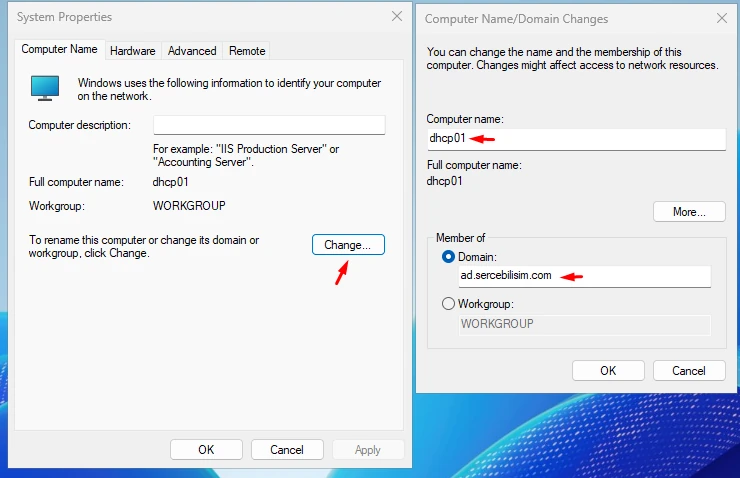
WORKGROUP member. In the dialog opened with Change, type the domain name in full, not abbreviated.Joining with PowerShell
For one machine the GUI is enough. For several, for a documented build, or as part of a script, use PowerShell:
Add-Computer -DomainName "ad.sercebilisim.com" -Credential (Get-Credential) -RestartTo rename in the same restart:
Add-Computer -NewName "DHCP01" -DomainName "ad.sercebilisim.com" -Credential (Get-Credential) -RestartTo write the object straight into its target OU, which is the subject of the next section, use -OUPath:
Add-Computer -DomainName "ad.sercebilisim.com" `
  -OUPath "OU=Servers,DC=ad,DC=sercebilisim,DC=com" `
  -Credential (Get-Credential) `
-RestartVerifying the Join Actually Worked
Seeing the domain name on the sign-in screen after the restart is a good sign, not proof. That screen shows the machine considers itself a domain member; it doesn’t show three things. Windows caches recent logons, so you can sign in even when no domain controller is reachable. It doesn’t show where the object landed. And cached logons keep working even when the secure channel is broken.
In onboarding terms: if you can walk through the door without badging, you don’t know the badge works. Verify from both sides.
On the client, in an elevated command prompt:
systeminfo | findstr /B /C:"Domain"
nltest /dsgetdc:ad.sercebilisim.com
klist
Read these lines:
- The
Domain:line should show the domain you joined. If it still saysWORKGROUP, the join didn’t complete; the machine only restarted. - The
DC:line in thenltestoutput should name a domain controller. An error means the machine can’t find a DC, and the problem is DNS, not the join. - A
krbtgt/AD.SERCEBILISIM.COMticket inklistproves the machine really authenticated with Kerberos. An empty list points to clock skew.
PowerShell tells you the secure channel’s health in one line; the expected output is True:
Test-ComputerSecureChannel -VerboseOn the server side, open Active Directory Users and Computers (dsa.msc) and confirm the computer object exists. If you didn’t specify an OU, it’s in the Computers container.
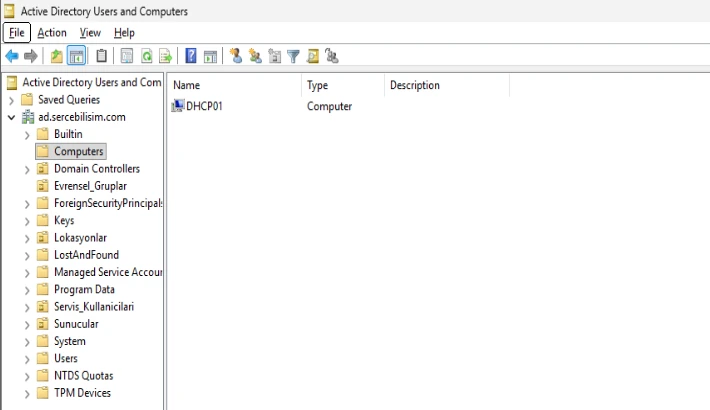
You can also ask by command, on a management machine with RSAT or on a DC:
Get-ADComputer DHCP01 -Properties DistinguishedName, LastLogonDate |
  Select-Object Name, DistinguishedName, LastLogonDate
DistinguishedName shows exactly where the object landed. Note it; you’ll need it next.
Where Did the Object Land? The Computers Container and OUs
If you don’t specify a target, the computer object lands in the Computers container at the root of the domain. The trap: Computers is a container, not an OU, and you can’t link a GPO to a container.
In onboarding terms: the personnel file is open and the badge is printed, but the person was never assigned to a department. They’re sitting in the lobby. Company-wide rules reach them, but no department’s rules do, because department rules are posted in departments, not in the lobby.
The technical version is exactly the same. GPOs linked at the domain level (such as the Default Domain Policy) apply to machines in Computers. Every targeted policy is linked to an OU, so a machine there gets none of them. That’s why the most common cause of “the join worked but no GPO applies” isn’t the GPO; it’s where the object is.
The clearest proof is opening two consoles side by side. In ADUC, the Computers container exists and your machine is inside it. In Group Policy Management, there’s no Computers node at all. GPMC lists only OUs, because those are the only places a GPO can be linked. Your object is sitting somewhere policy management can’t see.
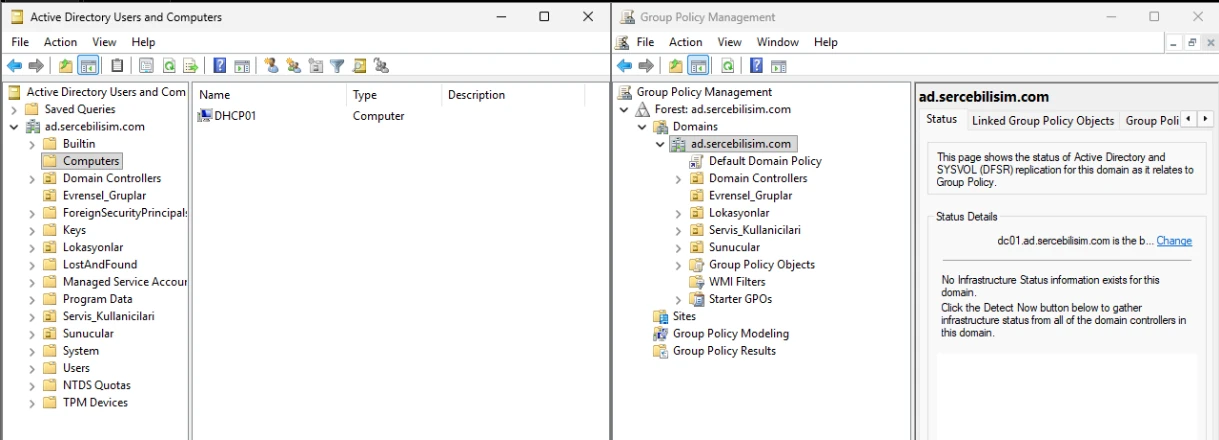
Computers with DHCP01 inside; the right tree has no such node. GPMC lists only OUs, because GPOs can only be linked to them. The lab's OU names are in Turkish: Sunucular is Servers, Servis_Kullanicilari is Service_Accounts, Evrensel_Gruplar is Universal_Groups, and Lokasyonlar is Locations; the text uses the English names.Redirecting the Default to an OU: redircmp
The real question here isn’t tidy filing. It’s this: which policies does a newly joined machine get until it’s moved to the right OU?
That machine isn’t idle while it waits. It’s on the network, powered on, in use. Someone sits at it, plugs in a USB drive, opens a browser. In Computers, only domain-level policies reach it: password rules come through, but USB storage restrictions, the corporate baseline, security settings, screen lock timeouts, anything linked to an OU, don’t. That gap can last hours, or weeks if nobody notices.
redircmp closes it. It permanently sets which OU receives every new computer object created without an explicit path. Because the target is an OU, you can link a GPO to it; the machine gets a baseline policy from its very first boot instead of waiting unprotected to be filed.
Run it once, with Domain Admin rights, on a domain controller:
redircmp "OU=New_Computers,DC=ad,DC=sercebilisim,DC=com"Two things to know. It only affects objects created from now on; existing objects in Computers don’t move by themselves. And the target must really be an OU, not a container; that’s the whole point.
Where the OU Goes, and Why There’s Only One
A common question: can each site have its own default? No. redircmp works at the domain level and accepts one default per domain.
That looks like a restriction but forces the right understanding of the OU’s role. New_Computers is where a machine lands, not where it lives. Its permanent address is the Computers OU under its site; this stop is temporary. So place the OU outside the site tree, at the same level as Servers and Service_Accounts. When a machine lands there, its site isn’t known yet.
When designing the baseline GPO to link there, the test is: can the machine wait safely on the network with this policy? It doesn’t have to let the user do their job; it’s a temporary stop. The goal is no unprotected window.
The second benefit is operational: every object sitting in this OU is unfiled work. Empty means everything is in place; full means someone has to move things. In a disciplined environment it’s usually empty, and empty is good news. The user-side equivalent is redirusr.
Creating the Object Before the Join
Sometimes there’s a cleaner way: create the object in the right OU before the machine arrives. It’s opening the personnel file and assigning the department before the person’s first day.
New-ADComputer -Name "DHCP01" -Path "OU=Servers,DC=ad,DC=sercebilisim,DC=com"The concrete benefit: the machine gets its permanent OU’s policies from its first boot, never touching Computers or New_Computers. But since 2022 there’s a rule most guides still describe the old way.
For the join to work, one of three conditions must hold: the person joining is the object’s creator, the object was created by a member of Domain Admins, or the object’s owner is in the trusted owners list of the Domain controller: Allow computer account re-use during domain join policy. The third needs March 2023 or later updates on all members and DCs.
I paid for this rule in a customer environment. By security policy, site technicians had no RSAT or Active Directory access, and all AD operations ran from head office; we’d built a delegation group for each site. At one site I pre-created fifty computer objects; a technician was to do the joins. They couldn’t.
The screen said exactly: “An account with the same name exists in Active Directory. Re-using the account was blocked by security policy.” We didn’t yet know what that sentence meant. None of the fifty machines would join, and the symptom pointed at Active Directory itself: a corrupt record, a replication problem. We searched for days. The fix was changing the objects’ ownership to the technician’s delegation group; at that moment all fifty joined.
One note: by the documentation, an object created by a Domain Admin should have been exempt from this check. In our environment it wasn’t. So the rule I trust in the field: don’t rely on the exemption; align ownership with the identity that will do the join. That’s the attribute the check reads.
In practice there are two clean paths. In small environments, join with the same account that created the object. At scale, instead of handing out seven separate ACEs to different identities, move to offline domain join (below); Microsoft recommends it for exactly this reason. The full permission set is on the Active Directory domain join permissions page. And there’s no way back: the NetJoinLegacyAccountReuse registry key once used to relax it was removed entirely with the August 13, 2024 updates.
If the Object Is in the Wrong Place
Moving it is free and doesn’t break its identity: drag and drop in ADUC, or use Move-ADObject. But that alone isn’t enough. The machine doesn’t pick up the new OU’s policies immediately; restart it. gpupdate /force often works, but for settings that depend on group membership, a restart is the only reliable path.
If you’ve fixed the location, restarted, and policy still doesn’t arrive or takes minutes, the problem is no longer where the object is. At one organization I inherited, site and subnet definitions were careless; read-only DCs, DCs, and unrelated servers were replicating with each other, and on top of that a busy branch was served by a domain controller with 4 GB of RAM and two cores. The result was unpredictability: policy sometimes arrived instantly, and sometimes a routine password reset took fifteen minutes. Same environment, same GPO, different time every run. Once that server was retired and the replication topology fixed, the complaints stopped on their own.
The distinction is useful: the object’s OU decides which machine a policy applies to; how long it takes depends on the health of the DC the client talks to and the accuracy of Sites and Subnets. The “Group Policy was applied from” line in gpresult /r names the DC the policy came from. If you see a server you didn’t expect there, look at site topology, not the OU.
Common Domain Join Errors
Domain join errors share one trait: a single message hides many causes. The screen says “domain not found”; the cause can be DNS, time, a port, or a stopped service.
| Symptom | Likely cause |
|---|---|
| “An Active Directory Domain Controller could not be contacted” | Primary DNS isn’t a DC, or SRV records don’t answer |
| DNS answers come from the internet, not the internal network | The client prefers an IPv6 DNS server; queries never reach internal DNS |
| Network tests pass in a lab but joins are inconsistent | VMs are in different network modes; the connection works one way |
| The join takes long and times out | A firewall blocks 88, 389, or 445 |
| Credentials are correct but “logon failure” returns | Clock skew over 5 minutes; Kerberos rejects the ticket |
DOMAIN\user credentials fail with Access denied | The NetBIOS name differs from the DNS name’s first label |
| “The account already exists,” or sign-in fails after the join | A stale computer object with the same name is in AD |
| “You have exceeded the maximum number of computer accounts” | ms-DS-MachineAccountQuota reached, no delegation |
| Join succeeds but no GPO applies | The object landed in the Computers container |
| “The trust relationship between this workstation and the primary domain failed” | The machine account password no longer matches AD |
| Joins and logons are intermittently slow | A switched-off DC still in DNS rotation |
Four rows deserve more.
An IPv6 DNS Server Gets in the Way
This is the hardest join failure to diagnose, because your DNS settings look right. ipconfig shows your domain controller as the DNS server, and still the query doesn’t go there.
I hit exactly this while preparing the screenshots for this guide, and I’ll admit the diagnosis took far longer than it should have. The join failed with DNS_INFO_NO_RECORDS, so the reflex was to look at the server. One by one I confirmed: the domain name was right, the domain and _msdcs zones were in place and AD-integrated, the DC pointed at itself for DNS, the SRV records existed, and the DC answered correctly when asked directly. Nothing was wrong on the server.
Looking back, the clue was in the first nslookup output all along, and I hadn’t read it. The query wasn’t going unanswered; an answer came back, but its SOA record named the public DNS host of the site. The answer came from the internet. The query had never reached the domain controller. The rule I took from it: a DNS query can be wrong even when it doesn’t “fail.” Look not at what the answer says but where it came from.
The cause: Windows runs dual stack, and if the network offers an IPv6 DNS server (usually from the router’s IPv6 advertisement or DHCPv6), name resolution can drift there. That server doesn’t know your internal domain, forwards the question to the internet, and brings back the outside world’s answer. The error on screen is DNS_INFO_NO_RECORDS (0x0000251D): the question went out, the answer came back empty.
List both address families:
Get-DnsClientServerAddress | Select-Object InterfaceAlias, AddressFamily, ServerAddressesAn address in the IPv6 row that isn’t your DC is your suspect. For diagnosis, you can disable IPv6 temporarily and retry. If the problem disappears, you’ve confirmed the source. Don’t stop there: that’s a test, not a fix.
The permanent fix has three levels; try them in order.
1. Fix the root cause. The problem isn’t IPv6; it’s a wrong DNS server on the network. Remove the IPv6 DNS address from the adapter or point it at your DC’s IPv6 address. In a lab, turning off the router’s IPv6 advertisement on that segment also works.
2. If that’s not enough, prefer IPv4. This is the method Microsoft names. IPv6 keeps working; only the preference order changes:
reg add "HKLM\SYSTEM\CurrentControlSet\Services\Tcpip6\Parameters" /v DisabledComponents /t REG_DWORD /d 32 /fThe value 32 (hex 0x20) means “Prefer IPv4 over IPv6.” It needs a restart. Then verify:
netsh interface ipv6 show prefixpoliciesThe ::ffff:0:0/96 row’s precedence should be higher than the ::/0 row’s.
3. Fully disabling is a last resort and never on a domain controller. The value 255 (0xFF) disables IPv6. Two warnings: any value other than 0 or 32 breaks the Routing and Remote Access service, so a server running VPN or NAT fails silently; and the widely copied 0xffffffff is wrong and adds a five-second boot delay. The correct value is 0xff. One more trap: the registry value doesn’t change the IPv6 checkbox in the adapter properties. It stays checked. Verify with prefixpolicies, not the checkbox.
Virtual Machines in Different Network Modes
Lab-specific, but in practice one of the biggest time sinks. Run the DC in bridged mode and leave the new server in NAT mode, and the two land on different segments. The trap is that the connection doesn’t break completely: the NAT machine can reach the bridged server because it can get out, but not the other way round.
A connection that works one way is harder to diagnose than one that doesn’t work at all. The join may even succeed at first contact; then the machine registers its NAT-side address in DNS and nobody in the domain can reach it there. It reads like a DNS or AD problem, while the fault is several layers lower. Before joining, confirm both machines are in the same network mode and test ping in both directions; a one-way test misleads you exactly here. The layer-2 side of this, and why one-way reachability is a pattern worth recognizing, is in What Is ARP?
A Stale Computer Object in AD
When a machine is reinstalled with the same name, its old object stays in AD. The new machine’s join will most likely fail with:
An account with the same name exists in Active Directory.
Re-using the account was blocked by security policy.
0xaac (2732) NERR_AccountReuseBlockedByPolicy
It’s the same hardening described above: the object exists, but the identity that created it doesn’t match the one joining. Microsoft’s order is clear: if the object is still in use, join with the account that created it; if it’s dead, delete it and retry, which is the most common case; or rename the machine to a name with no object in AD. Make deletion a habit: when a machine is scrapped or reinstalled, remove its object too. Years of dead objects aren’t just clutter; they’re attack surface.
A Broken Trust Relationship
A machine account is an account with a password, which Windows changes automatically every 30 days by default. If a machine was off for a long time or restored from an old snapshot, its password lags behind AD’s and the trust breaks. The classic reflex is leaving the domain and rejoining; that’s two restarts and a profile risk you don’t need.
Sign in with the local administrator account (with the trust broken, domain accounts won’t work; type the username as .\Administrator), then refresh the channel with an account allowed to reset the machine account:
Test-ComputerSecureChannel -Repair -Credential (Get-Credential)If it returns True, the relationship is refreshed and the machine talks to the domain again, often without even a restart. At that Get-Credential prompt, the NetBIOS rule applies again.
At Scale: Not Joining Fifty Machines by Hand
For five machines, the GUI is fastest. For fifty, it becomes a ritual repeated fifty times, with a few wrong OUs guaranteed.
Remote join. Add-Computer accepts a list of machines that are on and reachable:
$machines = "PC-IST-011", "PC-IST-012", "PC-IST-013"
Add-Computer -ComputerName $machines `
  -DomainName "ad.sercebilisim.com" `
  -OUPath "OU=Computers,OU=Head_Office,OU=Locations,DC=ad,DC=sercebilisim,DC=com" `
  -Credential (Get-Credential) `
  -LocalCredential (Get-Credential) `
  -Restart
Two credential prompts confuse people: -Credential is the account allowed to join the domain; -LocalCredential is a local administrator on the target machines. And if any machine on the list already has an object in AD with the same name, it hits the reuse block and fails with 0xaac. In a fifty-machine list, that’s three machines skipped silently; read the output to the end.
Offline domain join (djoin). A join package is produced centrally, carried to the machine, and applied there. The badge is printed at head office and sent to the branch; the employee has it in their pocket on day one.
It’s usually described as the “branch without VPN” solution, and it works that way: the machine never needs to reach a DC during the join. But its real argument is different. djoin /requestODJ on the target machine needs no permissions in Active Directory at all; Microsoft recommends it for exactly that reason, because it reduces the rights you have to hand out in the field to zero. It’s the cleanest answer to the ownership tangle above.
On a member machine with the rights, create the package:
djoin /provision /domain ad.sercebilisim.com /machine DHCP01 /machineou "OU=Servers,DC=ad,DC=sercebilisim,DC=com" /savefile C:\dhcp01-odj.txtOn the target, in an elevated prompt, apply it and restart:
djoin /requestODJ /loadfile C:\dhcp01-odj.txt /windowspath %SystemRoot% /localosImages and automation. If you deploy from an image, move the join into the Microsoft-Windows-UnattendedJoin component of unattend.xml, or embed a djoin package in the image. MDT, WDS, and Intune with Autopilot handle this step inside their own processes. At scale, the question stops being “how do I join a computer” and becomes “when a new machine comes out of its box, which department does it land in, with which policies, approved by whom?” The answer isn’t in the join command; it’s in your OU design and delegation.
Next Steps
Once your machines are domain members, the identity infrastructure starts doing its real job: settings flow from one place, permissions are managed through groups, and sign-ins are recorded centrally. The piece that makes those sign-ins work, and that most join errors eventually trace back to, is Kerberos, and the clock-skew rule above is only its most visible edge.
Questions about joining a domain
This article is adapted from a guide the author first published in Turkish on sercebilisim.com: Bilgisayarı ve Sunucuyu Domain'e Ekleme: Ön Koşul ve Hatalar

Written by
İlker PehlivanNetwork and systems engineer, founder of Serçe Bilişim
I run the networks and servers that other people's work depends on. Before founding my own consultancy I administered the backbone network, firewalls and core systems of a large multi-site organisation with thousands of users. I write about the things that actually broke.
Related articles
Active Directory DNS: Forwarders, Reverse Zones, Split-Brain
Configure Active Directory DNS on Windows Server: forwarders, reverse lookup zones, conditional forwarders, and the split-brain setup that broke our own site.
What Is Kerberos? Tickets, KDC, SPNs, and Troubleshooting
How Kerberos authenticates without sending passwords: the KDC, TGTs and service tickets, a real packet capture, klist, SPNs, and a diagnosis order for failures.
Install Active Directory Certificate Services (AD CS)
Install Active Directory Certificate Services step by step: Enterprise Root CA setup, the four irreversible decisions, AIA/CDP, backup and end-to-end verification.
What Is LDAP? Directory Queries, Bind, and LDAPS
What LDAP is, how a query is built from base DN, scope and filter, the three bind types, and why 389 vs 636 isn't a preference, shown with captured packets.
On this page
Part of this guide
Active Directory Guide: Architecture, DNS, Security